

Azure
Trustle uses the same application registration you create in your Microsoft Entra ID (formerly Azure AD) tenant to analyze your Azure environment. The app registration lets Trustle analyze user access patterns, and an Azure custom role lets Trustle analyze and manage Azure RBAC role assignments within a subscription.
Prerequisites
Section titled “Prerequisites”- Complete the Microsoft Entra ID app registration setup first. It covers creating the app registration, the client secret, and the Microsoft Graph API permissions Trustle needs.
- Owner or User Access Administrator access on the Azure subscription you want Trustle to analyze, so you can create and assign a custom role.
- The tenant ID, application (client) ID, and client secret from the Microsoft Entra ID app registration.
Configure Azure
Section titled “Configure Azure”Step 1: Assign a subscription-level role
Section titled “Step 1: Assign a subscription-level role”This lets Trustle analyze and manage Azure RBAC roles within a subscription.
- Navigate to the subscription in Azure.
- Search for Subscriptions in the search bar.
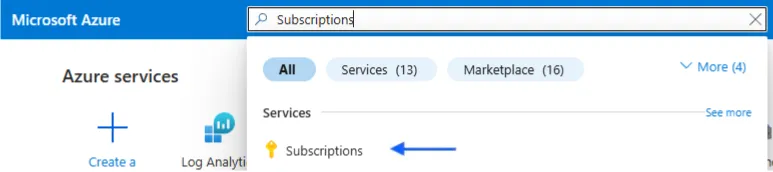
- Click the subscription you want.
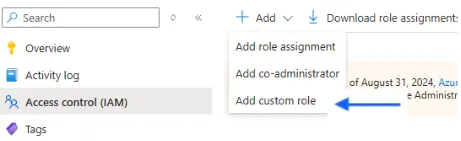
- Add a custom role.
- In your subscription, click Access control (IAM), then Add a custom role.
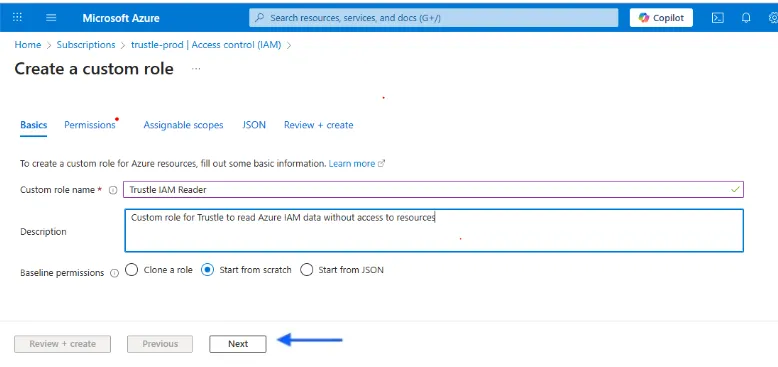
- Enter a name like
Trustle IAM Manager, click Start from scratch, then click Next.
- Click Add permissions.
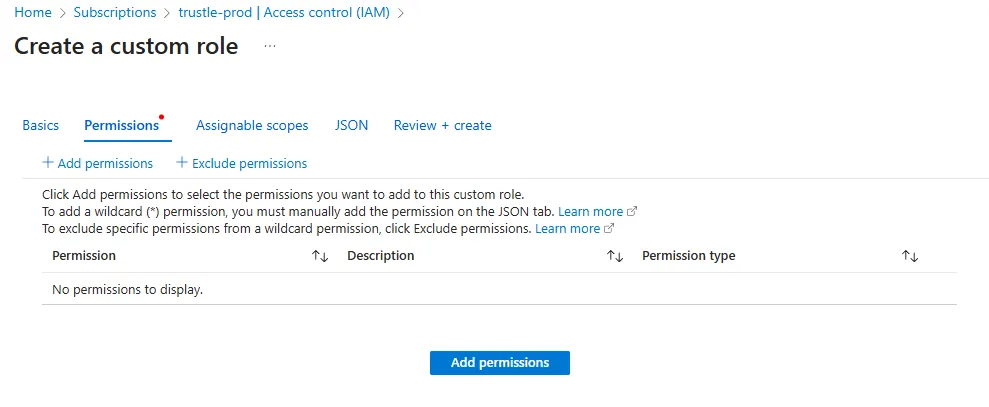
- Search for and select Microsoft.Authorization.
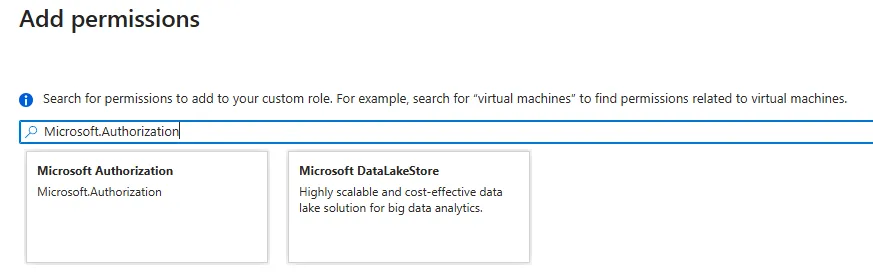
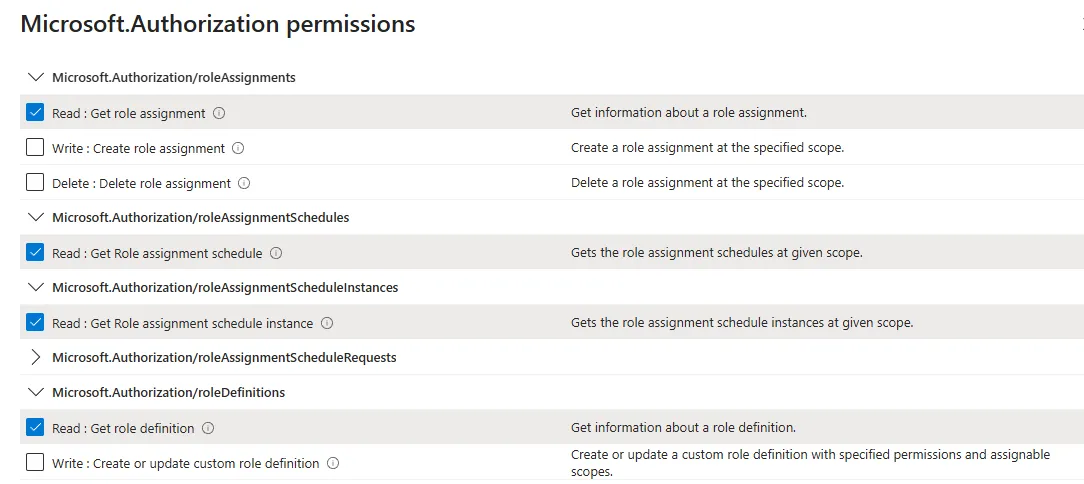
- Select the permissions in this table.
- Search for and select Microsoft.Resources, then select its permissions in the table.
- Search for and select Microsoft Azure Monitor, then select its permission in the table.
- Search for and select Microsoft.Management, then select its permissions in the table.
- Click Add, Review + create, Create, then OK.
| Action | Access |
|---|---|
Microsoft.Authorization/roleAssignments |
Read, Write, Delete |
Microsoft.Authorization/roleAssignmentScheduleInstances |
Read |
Microsoft.Authorization/roleDefinitions |
Read |
Microsoft.Authorization/roleEligibilitySchedules |
Read |
Microsoft.Authorization/roleEligibilityScheduleInstances |
Read |
Microsoft.Resources/subscriptions |
Read |
Microsoft.Resources/subscriptions/resourceGroups |
Read |
Microsoft.Insights/eventTypes/values |
Read |
Microsoft.Management/managementGroups |
Read |
Microsoft.Management/managementGroups/descendants |
Read |
Microsoft.Management/managementGroups/subscriptions |
Read |
- Assign the custom role.
- Go back to the subscription IAM page, click Add, then Add role assignment.
- Select Privileged administrator roles.
- Search for
Trustle IAM Manager, click it, then click Next. - Click Select members and add the app registration.
- On the Conditions tab, under What user can do, select Allow user to assign all roles (highly privileged).
- Click Review + assign twice.
- When this completes, the Access control (IAM) page shows the app registration with the new custom role.
This custom role gives Trustle read access to role definitions, subscriptions, resource groups, management groups, and Azure Monitor event data, plus read, write, and delete access to role assignments (except privileged administrator roles). It complements the Microsoft Graph API permissions for a comprehensive analysis of user privileges.
Step 2 (optional): Test and verify configuration
Section titled “Step 2 (optional): Test and verify configuration”Confirm the subscription-level role is configured correctly before entering credentials into Trustle.
- Search for Subscriptions in the search bar, then click the subscription name.
- Click Access control (IAM) in the left sidebar.
- Click Role assignments next to Check access.
- Search for the name of your integration (
Trustle-Integration) and confirm it has theTrustle IAM Managerrole.
For app registration, client secret, and Microsoft Graph API permission checks, see Microsoft Entra ID.
Connect in Trustle
Section titled “Connect in Trustle”Once setup is complete, enter the following information into Trustle. These are the same values you gathered in the Microsoft Entra ID app registration.
Tenant ID(Directory ID)Application (Client) IDClient Secretvalue
Verify
Section titled “Verify”After you connect, Trustle:
- Imports group memberships and role assignments for all accounts (initial discovery).
- Analyzes 30 days of activity and identifies unused permissions and users.
- Populates the IAM dashboard with the findings.
- Runs periodic imports and analysis, and shows any changes in these findings (ongoing monitoring).
Troubleshooting
Section titled “Troubleshooting”Common issues:
- Permission consent errors: make sure you’re using a Global Administrator account.
- Missing client secret: this value is shown only once. Recreate it if lost.
- API permission: verify all permissions are Application type, granted, and approved.
Contact the Trustle technical support team with specific error messages. Provide:
- Your tenant ID and application ID for faster troubleshooting.
- Screenshots or audit log samples, if available.
- Error messages or descriptions.