

HubSpot
Connect HubSpot to Trustle to get insight into over-privileged accounts and unused accounts, and to adopt just-in-time access management.
Configure HubSpot
Section titled “Configure HubSpot”Step 1: Create an App Integration
Section titled “Step 1: Create an App Integration”-
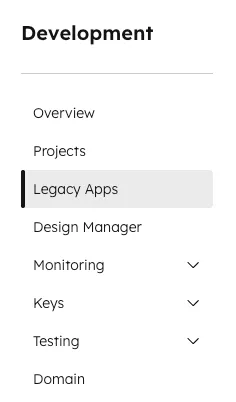
Select Legacy Apps from the left menu in the Development Console.
-
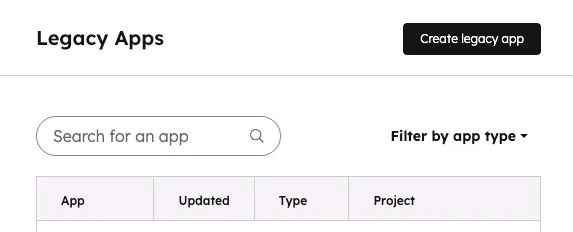
Click Create Legacy App.
-
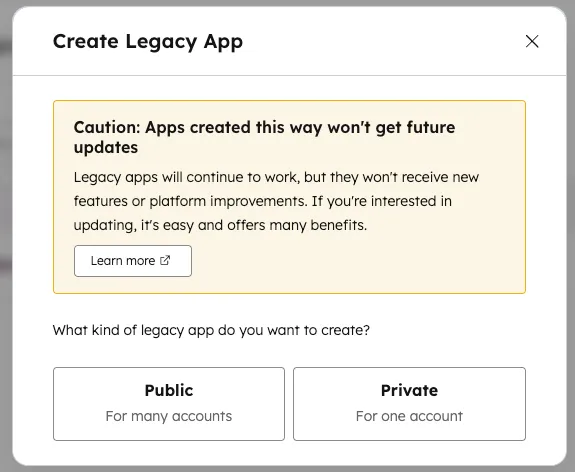
Select Private.
-
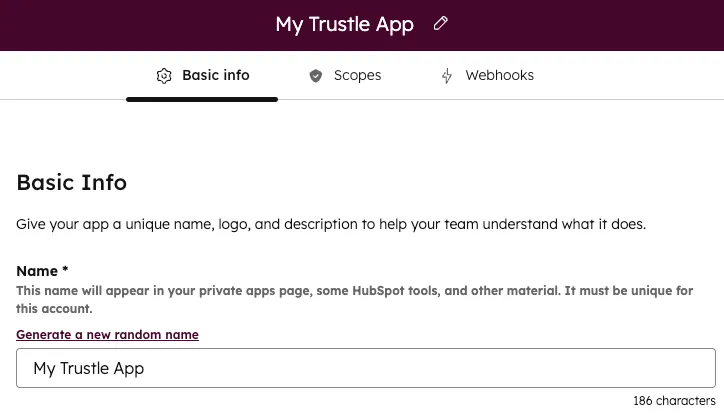
Type the desired app name.
Step 2: Grant the Application HubSpot Scopes
Section titled “Step 2: Grant the Application HubSpot Scopes”-
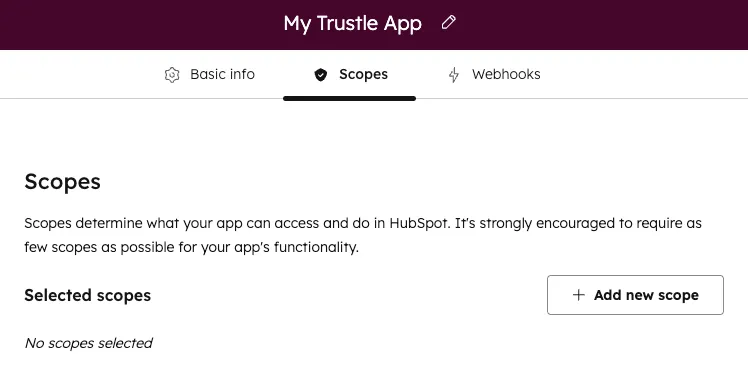
Click Scopes in the app creation window, then click Add new scope.
-
Select the following scopes:
crm.objects.owners.readcrm.objects.users.readsettings.users.readsettings.users.teams.readsettings.users.roles.readsettings.users.write
-
Click Update.
-
Click Create App.
-
Click Continue Creating.
Step 3: Get Your Access Token
Section titled “Step 3: Get Your Access Token”-
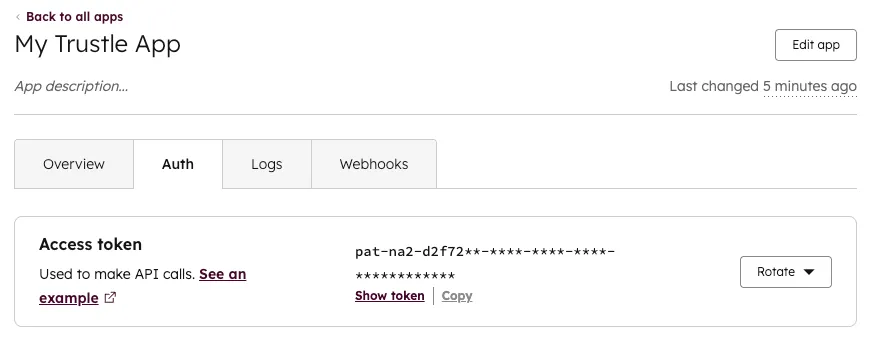
Get your Access Token after the app is created.
-
Click the Auth tab.
-
Click Show token in the Access Token section.
-
Click Copy in the Access Token section.
Connect in Trustle
Section titled “Connect in Trustle”- Go to the Connections page in Trustle from the left menu.
- Under Identity Providers, find the HubSpot logo and choose Connect.
- Provide the Access Token you copied.
- Click Test Connection.
- Click Save Connection after the test succeeds.